CVN PSA documentation
CVN PSA is a professional services automation app for small MSPs. You install it on your own Linux server, put your own brand on it, and run your service desk, dispatch, monitoring, billing and client portal from one place.
These pages cover installing it, setting it up, using each module and keeping it up to date.
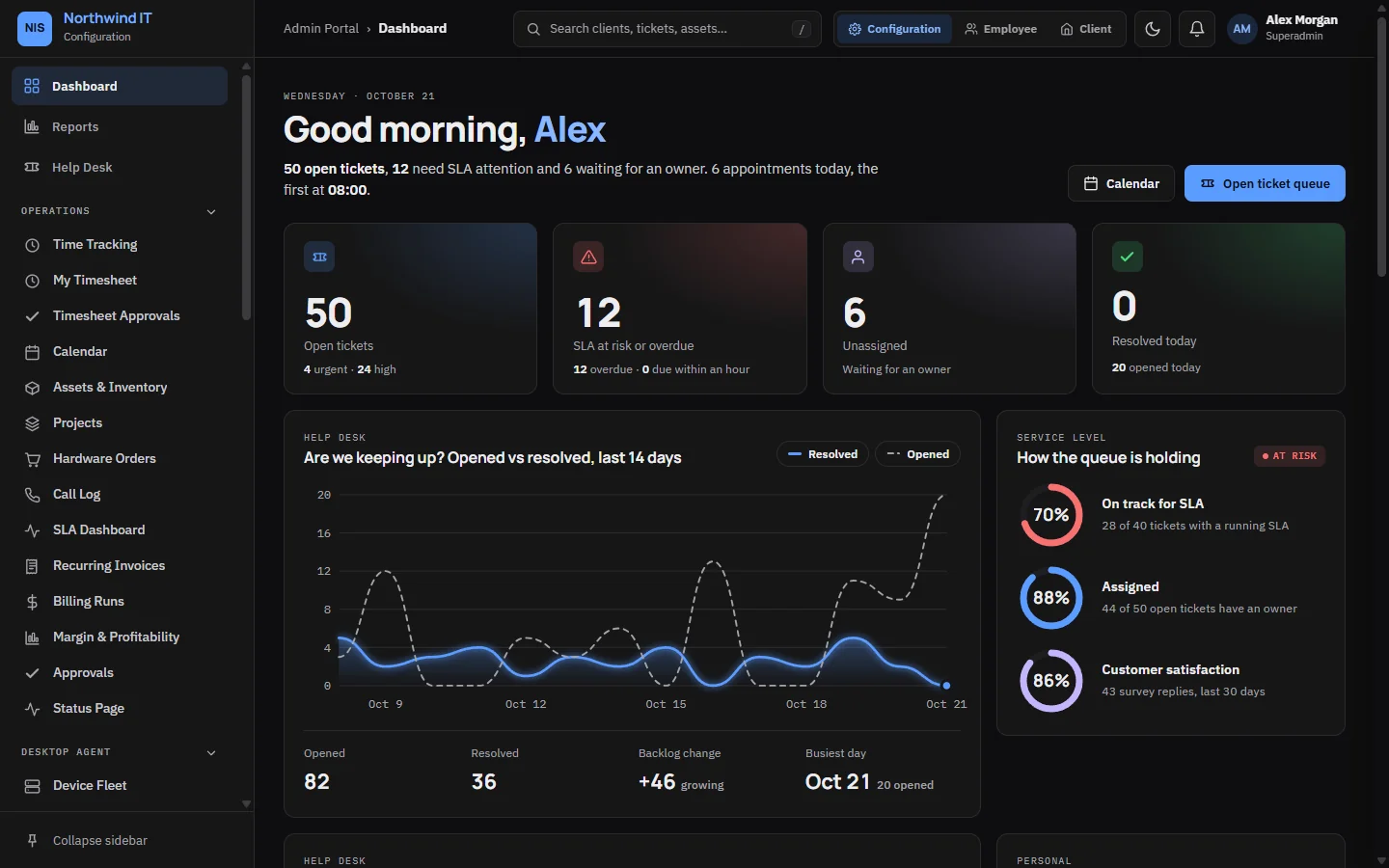
What is in the app
CVN PSA has three portals, each with its own sign-in page:
- Admin portal for administrators: settings, users and permissions, billing, reports and integrations.
- Employee portal for technicians: the ticket queue, dispatch, calendar, time and client documentation.
- Client portal for your clients: their tickets, live chat, invoices, approvals and shared documents.
All three carry your company name and logo. A new install calls itself "Service Portal" until you set your own name.
Where to start
- Check the requirements.
- Run the installer, which ships with version 1.0.
- Follow First login and setup to get from an empty install to your first real ticket.
- Set your branding and email before you invite any clients.
How these docs are organised
- Getting started covers installing, configuring and maintaining the server.
- Using CVN PSA has one page per module, written for the people who work in it every day.
- Client portal is what your clients see, so you can explain it to them.
- Administration covers users, settings, security, AI and compliance.
- Integrations covers the REST API, webhooks, MSP Backups and the other connectors.
- Licensing explains how your licence, domains and update year work.
Each page has an "Edit or report a problem" link at the bottom if something is wrong or missing.