Dispatch board
Dispatch › Dispatch Board lays out a day as one column per technician, with unassigned jobs at the side. Drag a job onto a technician to assign it. Drag it between technicians to reassign it.
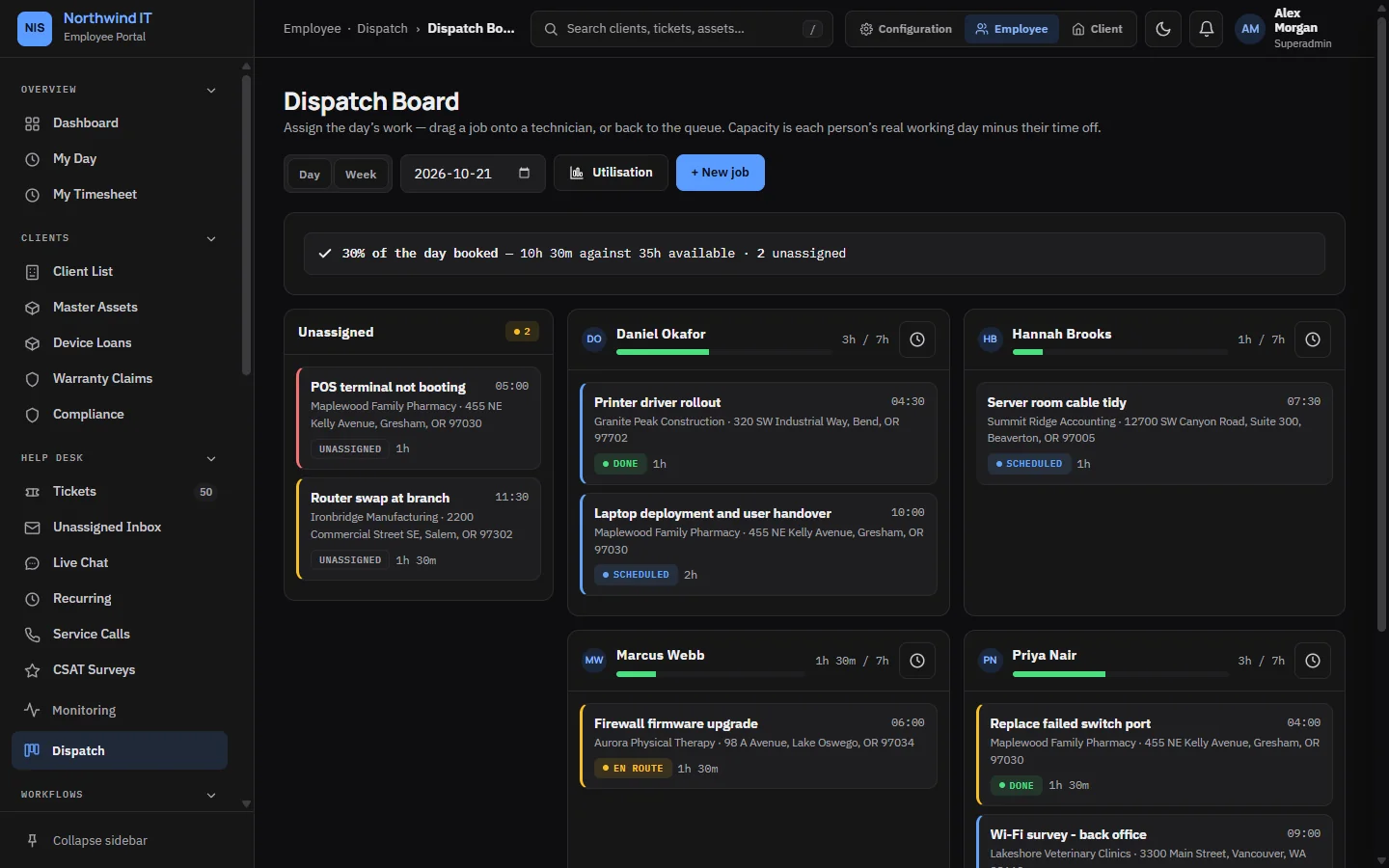
Job cards
Each card shows the client, location, duration, priority and status. A job moves through these statuses:
Unassigned › Scheduled › En route › On site › Done
If a reassignment moves the arrival window, tell the client.
Capacity
The bar on each technician shows how much of their day is booked, in minutes, including travel. Capacity is worked out per person:
- Their own working pattern for that weekday, or your company's opening hours if they have none.
- Less any time off that covers the day.
- Scaled by their schedulable percentage (80% by default), because nobody is billable for every minute. Travel, admin and interruptions take time.
Set working patterns, time off and the schedulable percentage on each technician so the board shows real capacity.
Overlaps
When you place a job that overlaps another booking for the same technician, the board warns you and names the jobs it clashes with. Nobody should be expected at two sites at once.
Loading a day
- Place fixed appointments first: anything with a time already agreed with the client.
- Fill around them by area, so travel stacks up instead of crossing town.
- Leave room for urgent work. A board at 100% breaks on the first emergency.
- Check each technician has the skills and the parts for what you gave them.
Week view and utilisation
The week view shows each technician's load across the week. The utilisation view compares booked time with capacity, so you can see who is overloaded and who has room.
On a phone, technicians see their own jobs with addresses and times. See My Day.