Time tracking and timesheets
Time entries sit on tickets and flow into invoices and retainer balances. Time that is not logged is not billed.
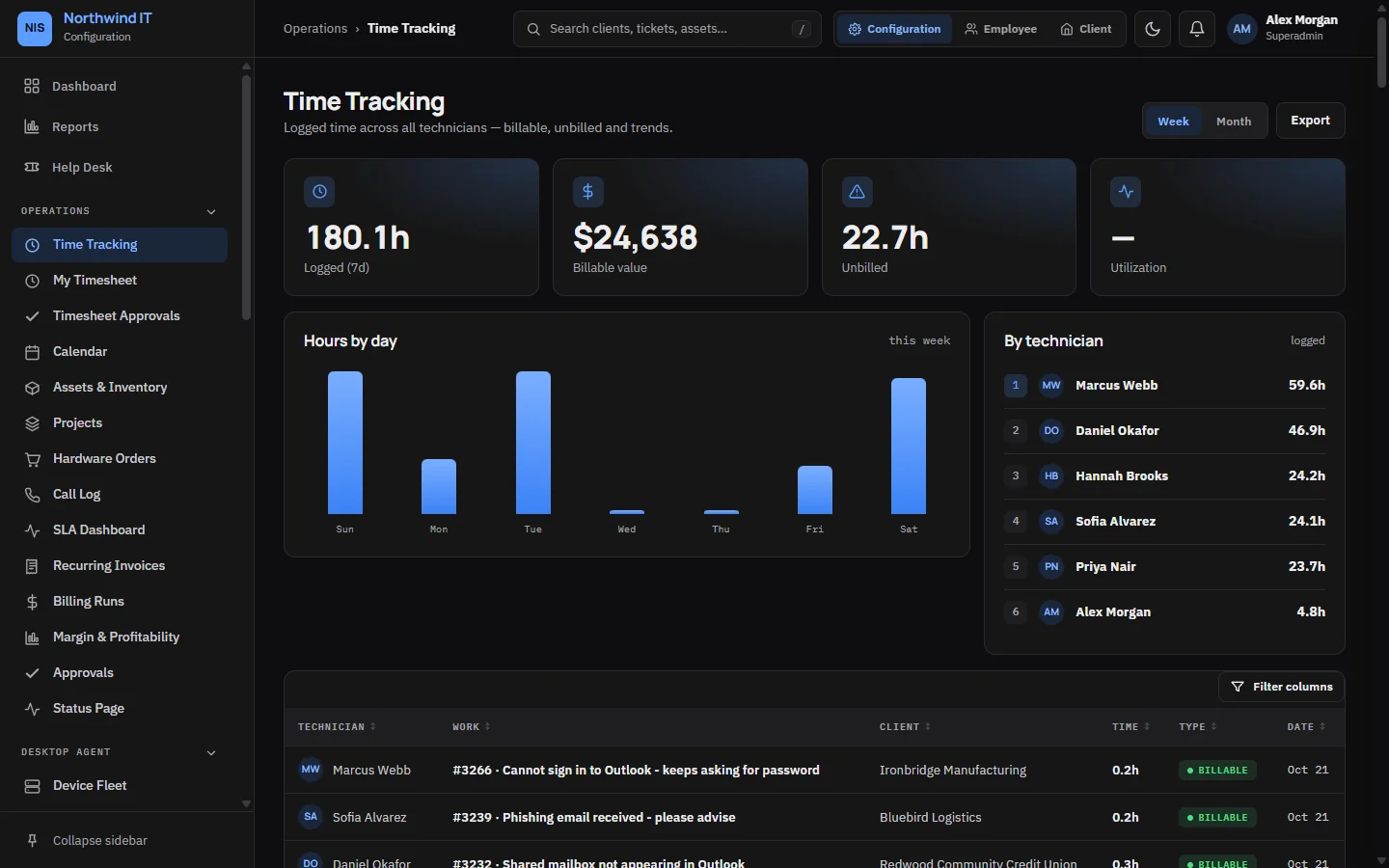
Log time
- Log against the ticket, not against the client in general.
- Log as you go, or at the latest before the end of your shift. Or start a timer and stop it when you finish.
- Describe what you did. The client may see the entry on their invoice.
- Mark it billable or non-billable according to the contract.
- Round to the client's agreed increment.
The Draft time entry tool can suggest minutes and a note from what you wrote on the ticket since you last logged time. You check it before it is saved. See AI triage and assist.
What is not billable
- Rework caused by your own mistake.
- Internal training and admin.
- Work the client's plan already covers.
- Time on a retainer. It burns retainer hours instead. See Contracts and retainers.
Timesheets
Each week, technicians submit their timesheet.
- Open Timesheets and check the week: every day accounted for, every entry described.
- Submit the week.
- A manager with the Time tracking · Manage all time permission approves it, which locks the week, or sends it back with a reason.
Nobody approves their own week, except a superadmin.
Weekly review for managers
- Find unbilled billable time and get it onto an invoice or a retainer.
- Check that non-billable entries have a reason you could defend.
- Look for missing days. An empty day is lost revenue, not a quiet week.
- Read a sample of entries as the client would. Vague entries slow down payment.
Unbilled billable time that no retainer absorbed is picked up by the next billing run.