Calendar and service calls
Appointments, on-site visits, service calls and blocked time all live on one calendar. Clients cannot book themselves from the portal. Your desk agrees a time with the client by phone, email or on the ticket, then adds it here.
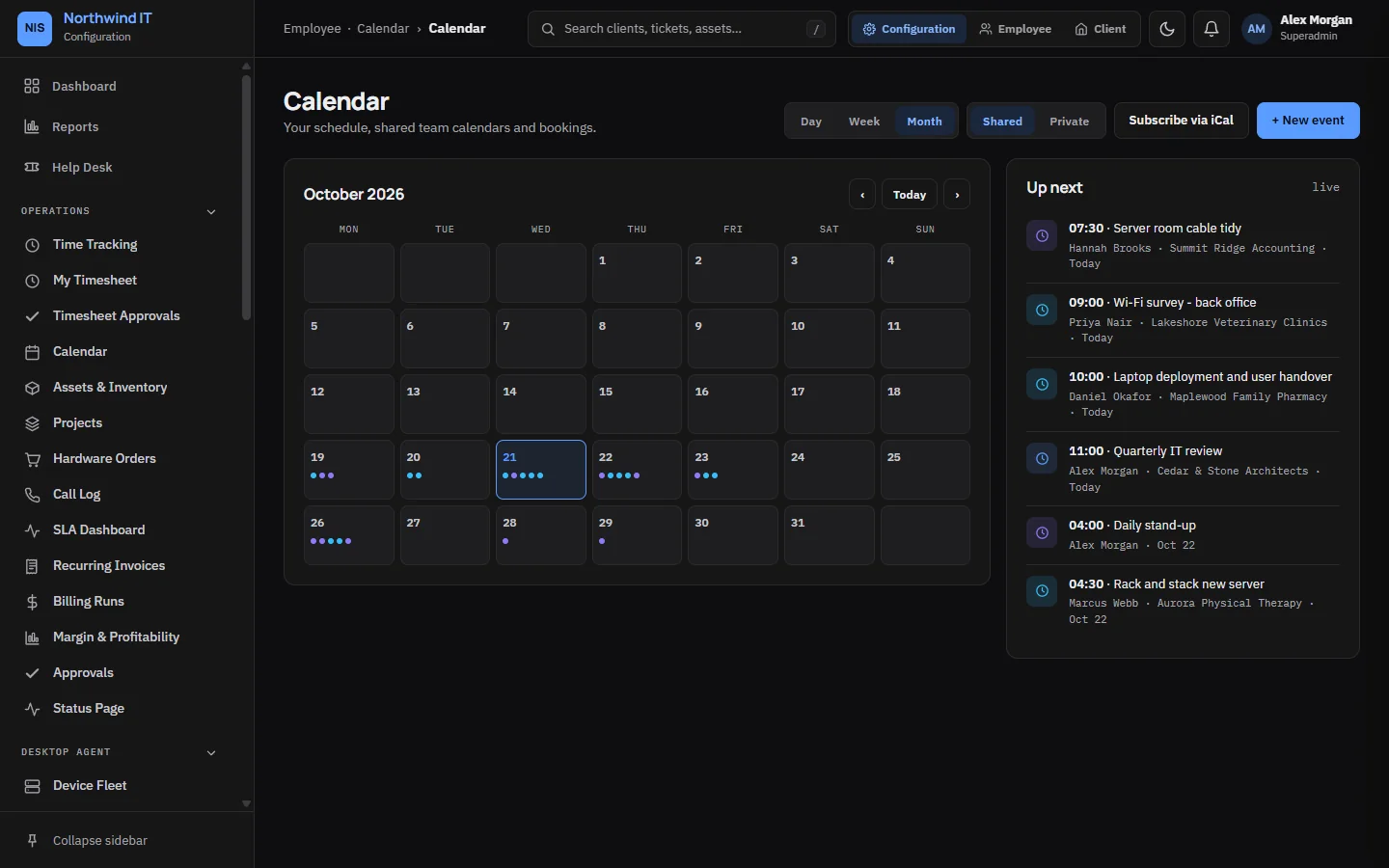
Add an event
- Open Calendar and use + New event, or hover a day or time slot and click its +.
- Set the title, time and duration.
- Link the client, ticket, asset and location where they apply.
- Save. Click an event later to edit or delete it.
Anyone with calendar access can schedule themselves. Scheduling other people, and approving or declining events, needs the Calendar · Manage permission.
Dispatch jobs with a scheduled time appear on the calendar by themselves.
My calendar and shared calendars
- My Calendar shows your own appointments, service calls and bookings together.
- Shared Calendars shows the team. Dispatchers use it to find cover.
Keep your leave and blocked time up to date, or the dispatch board will book work over it.
Subscribe from your own calendar app
The team calendar has a private feed link. Copy it from the calendar and add it to Google Calendar, Outlook or Apple Calendar. The feed is read-only, covers the last three months and the next twelve, and updates on the calendar app's own schedule.
The link contains a secret token, so anyone with the link can read the schedule. If it is shared by mistake, generate a new link. The old one stops working at once, for everyone subscribed to it.
Service calls
A service call is a visit or remote session booked for a client: a dispatch job or calendar event of the service-call kind, with a time, a client and an assigned technician. It shows on both the dispatch board and the calendar.
Before you go:
- Read the client's runbook and recent tickets.
- Check the asset record for the device you are visiting.
- Confirm site access: parking, keys, alarm codes and who to ask for. The client record holds these.
After the visit:
- Update the ticket with what you did and found.
- Log time against the ticket, and mileage under Billing › Trips.
- Update asset and documentation records if anything changed.
- Mark the job done.
Trips and mileage
Billing › Trips records travel: date, client, start and end point, distance and whether it is billable. Link each trip to its ticket or service call. Billable mileage is picked up by the monthly billing run.