Client portal guide
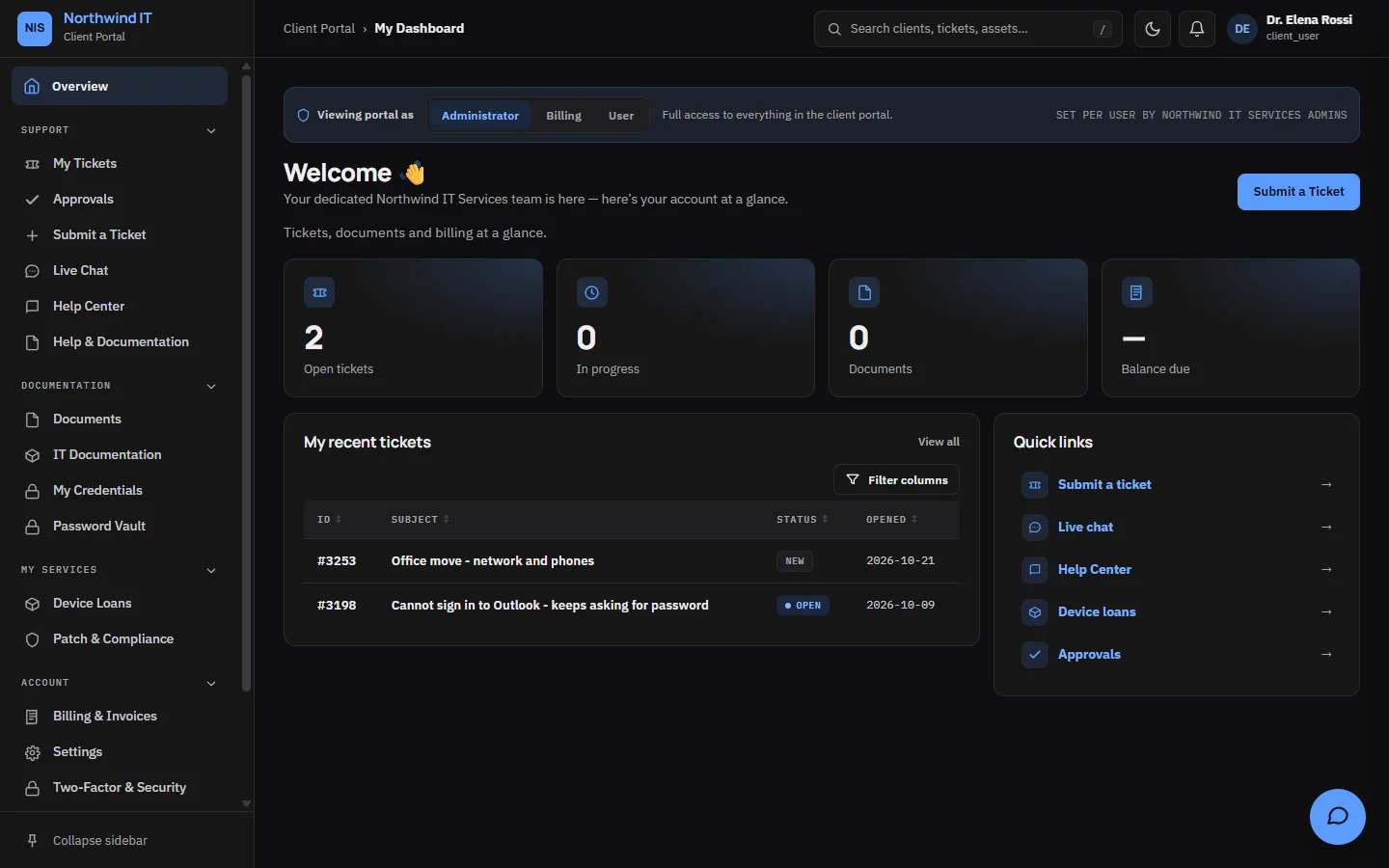
The client portal is your clients' front door to your MSP. It carries your company name and logo, and works on a desktop or a phone. Use this page to explain the portal to your clients, or share parts of it with them.
Signing in
Clients sign in at https://your-domain/login/client.
- You create the account. The client gets an email invitation with a single-use link to set their own password.
- They sign in with their work email and password.
- If two-factor sign-in is required for their organisation, they enter a code from their authenticator app or use a passkey.
Forgot password on the sign-in page emails a reset link that expires after a short time. Too many failed attempts lock the account for a few minutes.
The dashboard
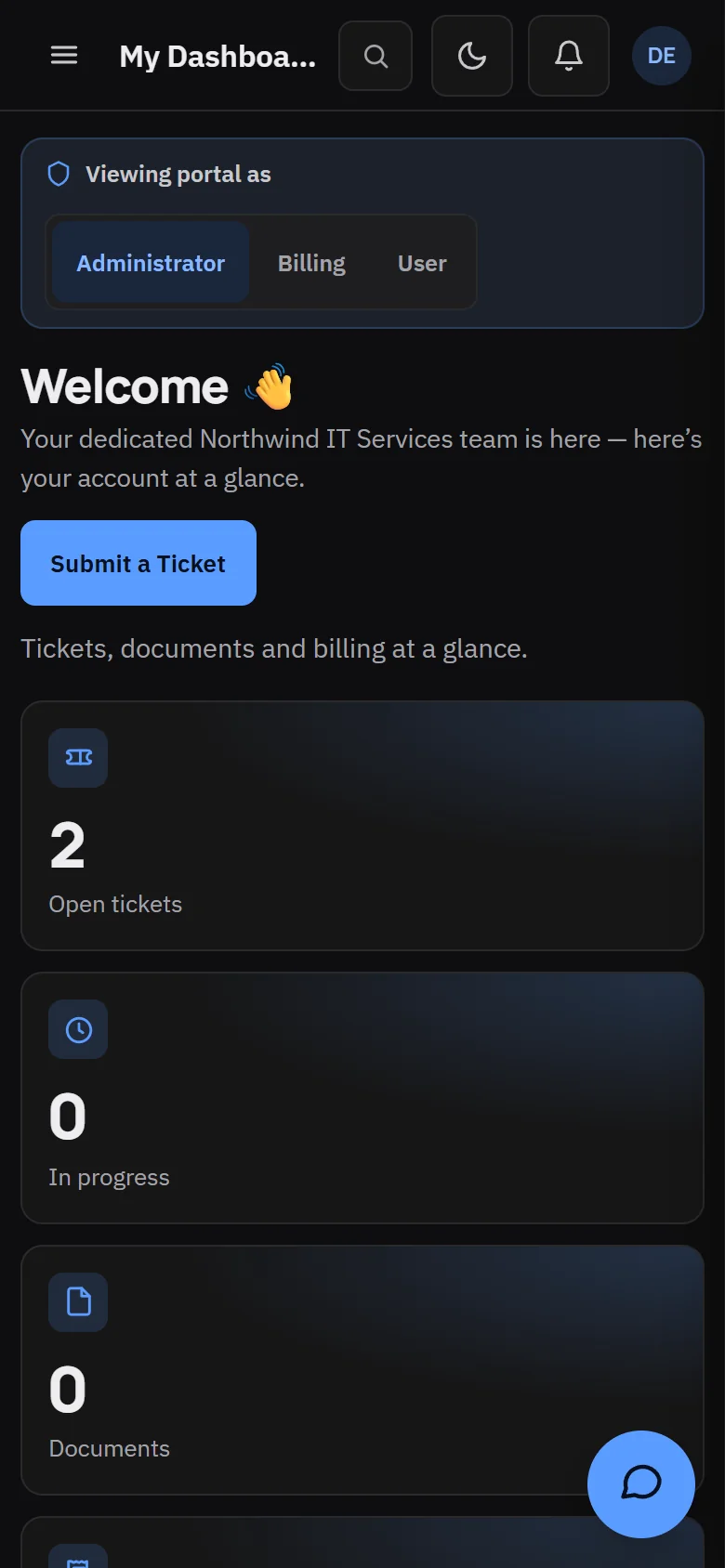
The dashboard shows open tickets, anything waiting for the client's approval, their current balance and the quick links you set up for them.
Tickets
- Submit a ticket with a clear subject, a priority and a description. Clients can attach files, such as a screenshot of an error.
- They get a ticket number on screen and an email confirmation.
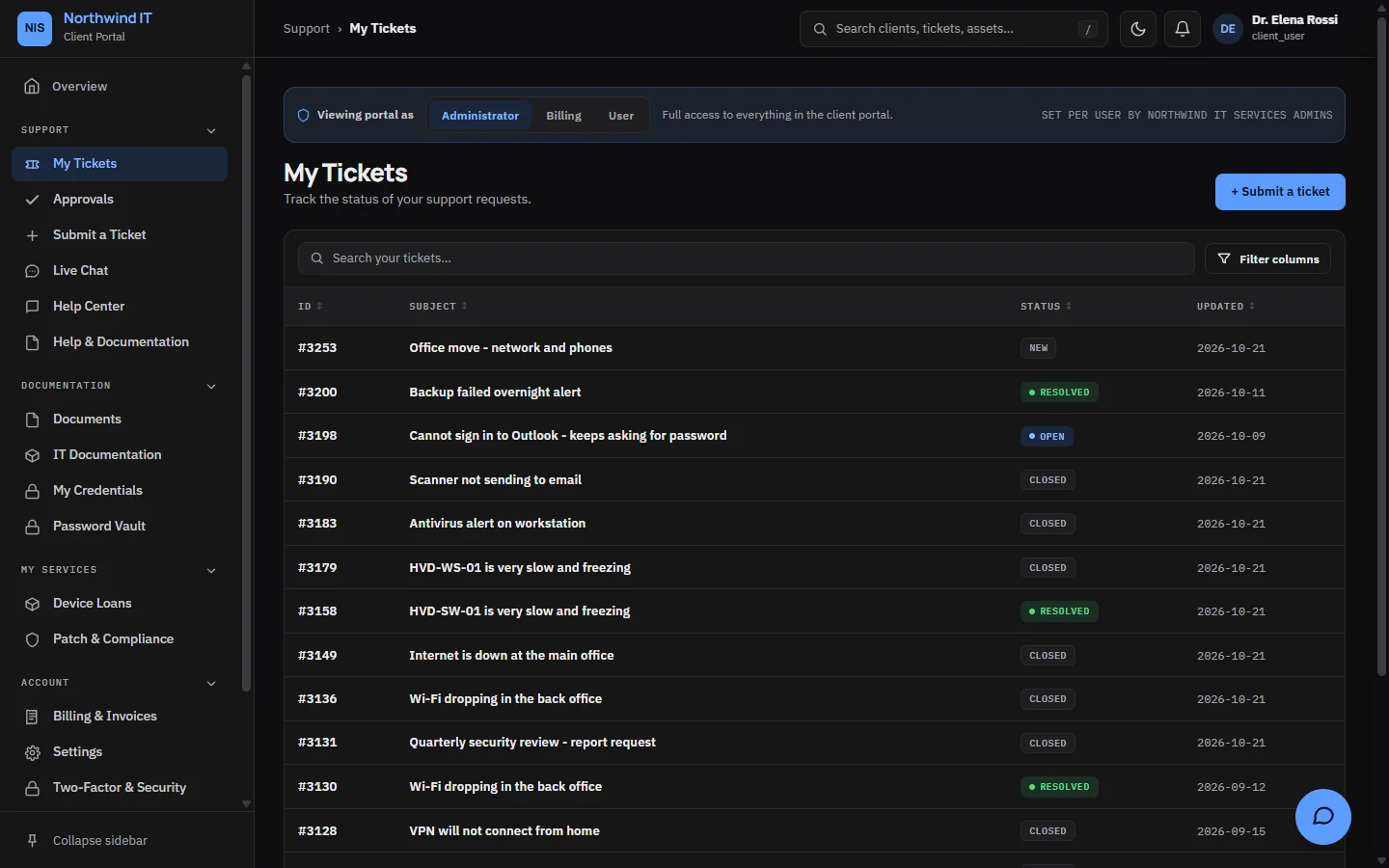
- My Tickets lists their tickets with the latest activity first. They open one to read the thread, reply or add files.
- They can also reply to the notification email. Email replies land on the same ticket.
- A resolved ticket can be reopened from the portal.
When a ticket is resolved, the client gets a one-click satisfaction rating.
Live chat
During your chat hours, clients can start a chat from the portal. Outside those hours they see your closed message. A chat that needs follow-up can become a ticket. See Live chat.
Help centre
The help centre lists your client-facing knowledge base articles by category, with search across the full text.
Documents and IT records
- Documents: files you share with the client, such as agreements, diagrams and reports. Clients can preview, download and comment.
- IT documentation: a read-only view of their assets, licences and networks.
- Patch report: patch evidence for their own devices.
- Managed credentials: the admin logins you hold for their systems. Only the credentials you choose to share with the portal appear, and every reveal is logged.
- Password vault: shared password storage for their own team, with sharing between colleagues.
Billing
- Invoices: every invoice with its status, due date and balance. Draft invoices are not shown.
- Pay now: card payment through your Square or Stripe account, if you have connected one. The invoice is updated when the provider confirms the payment.
- Payments, retainer balances and the client's contract.
Approvals
The approvals queue holds quotes and changes waiting for the client's decision. Each approval or decline is timestamped against the person who made it.
Device loans
Clients see loaner equipment signed out to them, with due dates, and can request a loan or report a return.
Their own settings
Clients can update their name and phone number, choose which emails they get, switch between dark and light themes, send themselves a password reset, and set up two-factor sign-in.
What each person sees depends on their access level.